KB: How to license M3U8 Downloader
Upon starting M3U8 Downloader for the first time, you will be presented with the Licensing Wizard. It can also be launched from the Help menu or if your trial license has expired (see below).
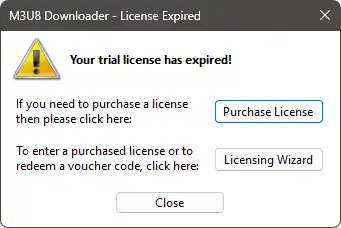
Welcome Page
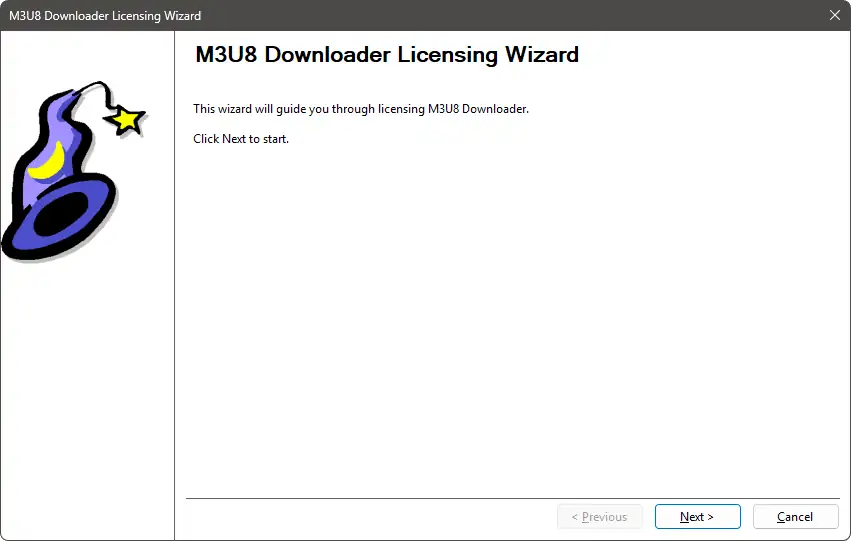
On the Welcome Page, just click Next.
Options Page
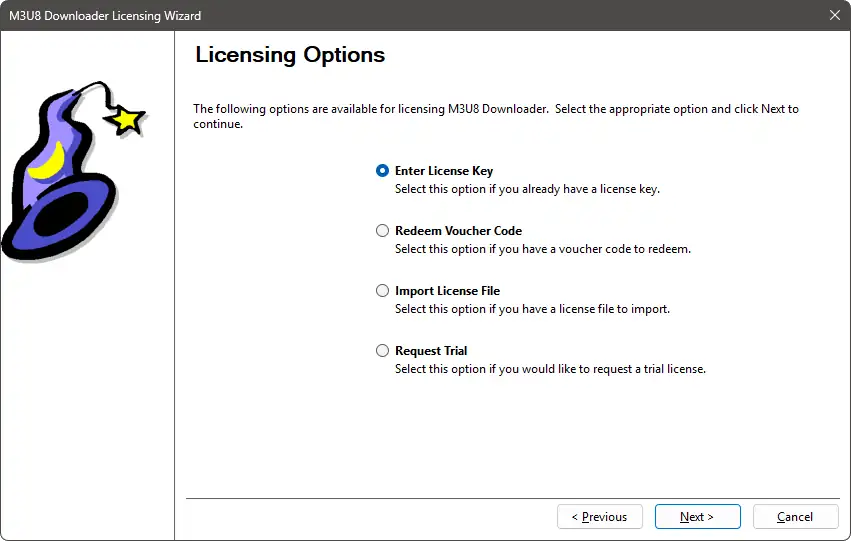
On the Options Page, select how you would like to license the application. Then, click Next.
Request Trial Page - Part 1
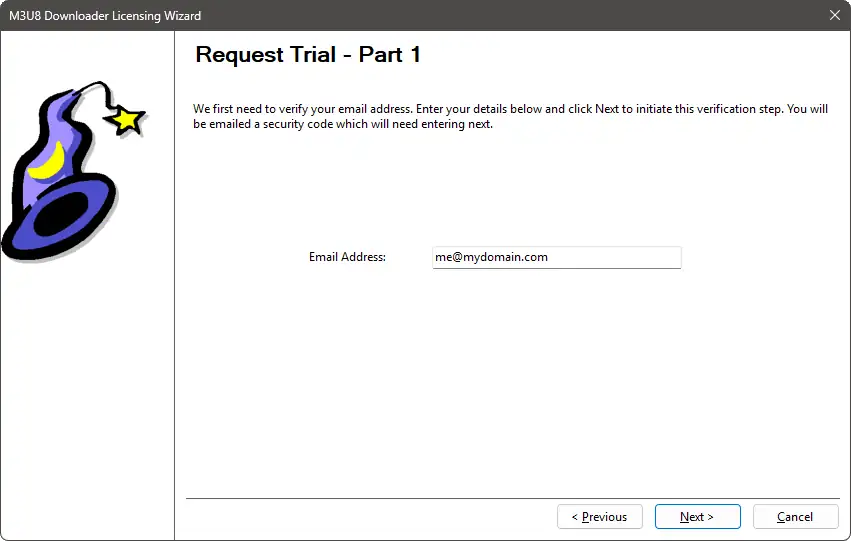
On the Request Trial Page - Part 1, enter your email address. Then, click Next.
You will then be emailed a seurity code, which will need entering on the next page.
NOTE: The email address entered must not have already had a trial for this application.
Request Trial Page - Part 2
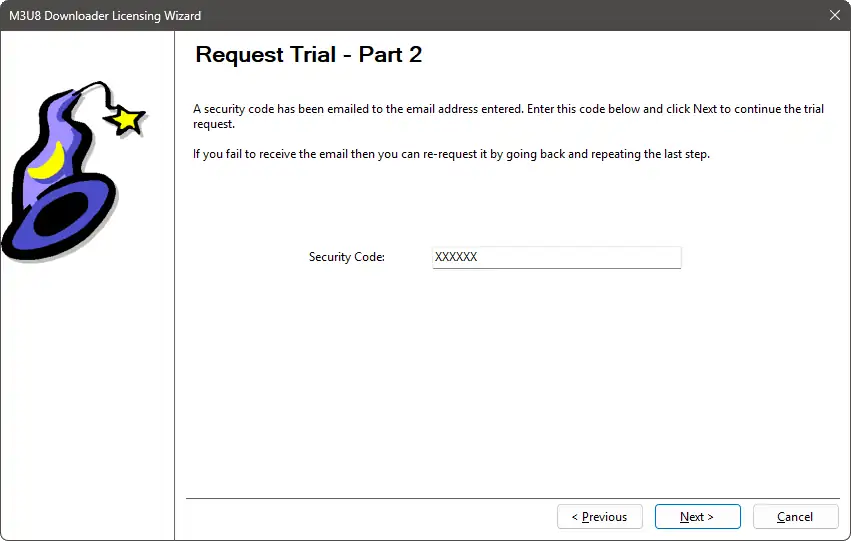
On the Request Trial Page - Part 2, enter the security code you were emailed. Then, click Next.
There is no time limit on this security code. Clicking Next will then request a trial license for the application. If the email address or computer have previously had a trial license for this application then the trial request will be denied.
Redeem Voucher Code Page
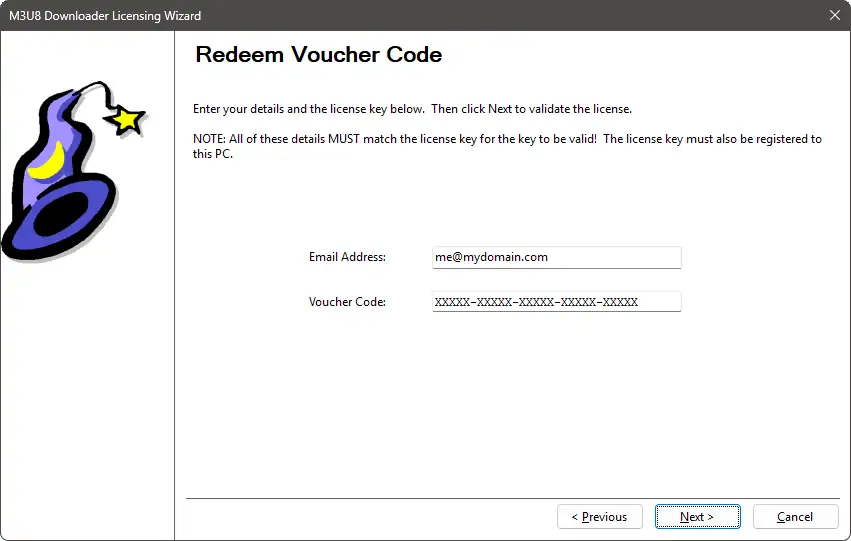
On the Redeem Voucher Code Page, enter your email address and the voucher code that was emailed to you. Then, click Next.
NOTE: The voucher code MUST belong to the email address entered.
Redeeming Voucher Code Page
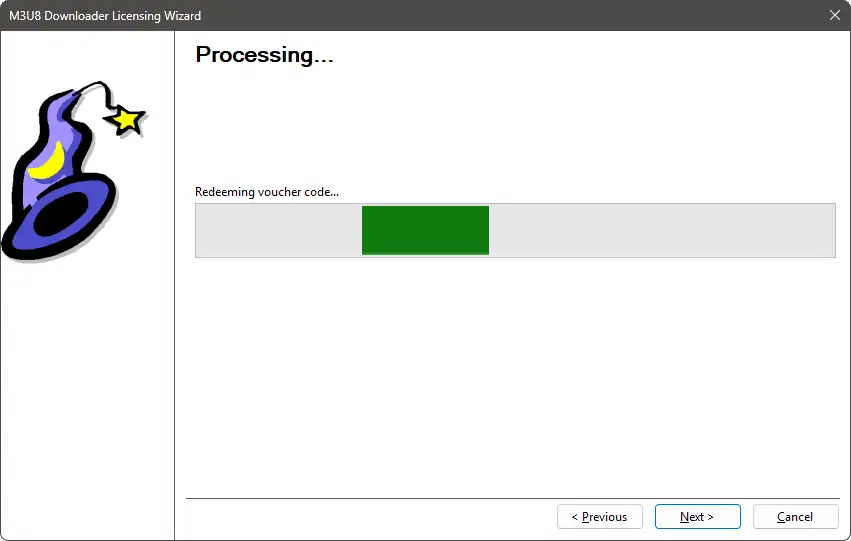
On the Redeeming Voucher Code Page, just wait until the redemption request completes.
The wizard will automatically progress if the voucher code has been successfully redeemed.
If an error occurs then a message will be displayed before returning to the previous wizard page.
Enter License Key Page
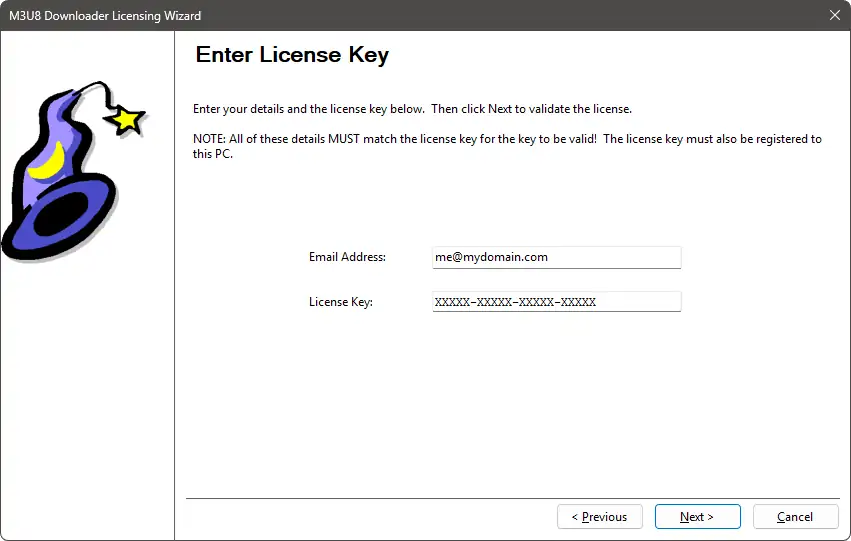
On the Enter License Key Page, enter your email address and license key.
NOTE: The license key MUST belong to the email address entered and the current computer. If either do not match then the license key will be invalid.
Import License File Page
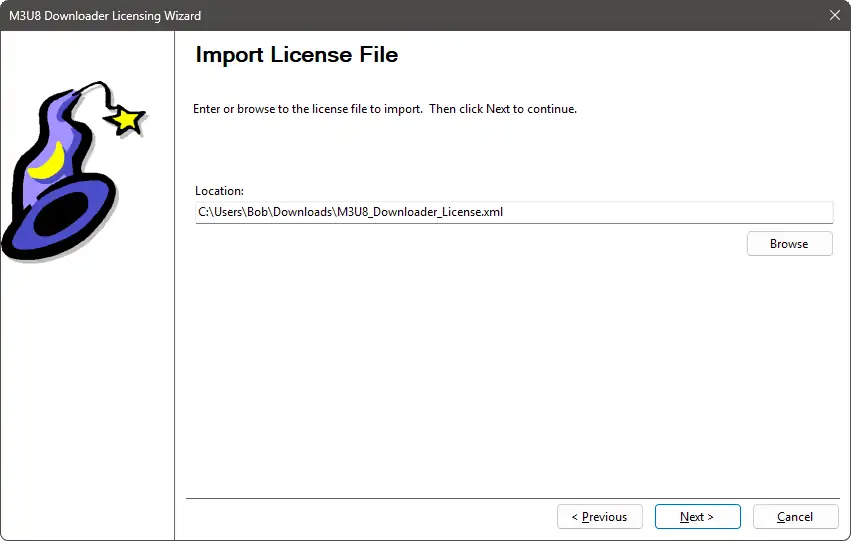
On the Import License File Page, browse to or enter the location of a license file to import.
NOTE: The contents of the license file MUST belong to the email address in it and the current computer. If either do not match then the license file will be invalid.
Complete Page
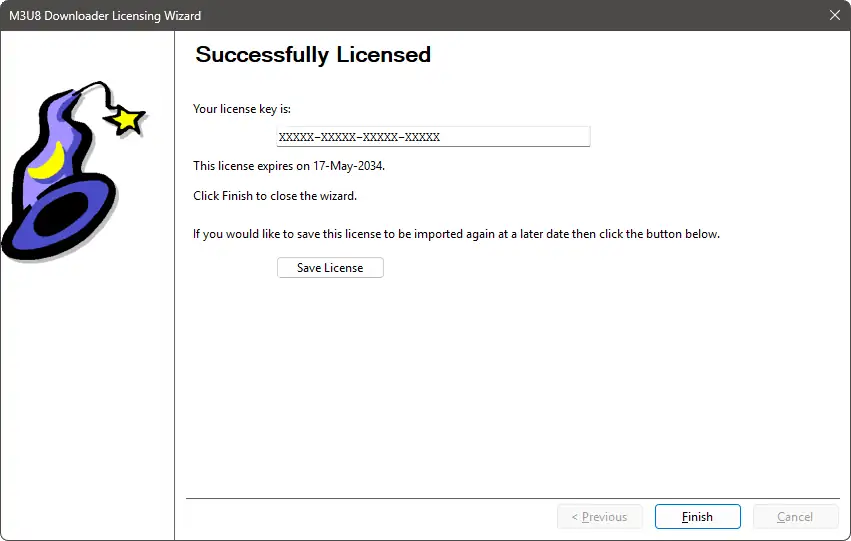
If the application has been successfully license then the Complete Page will be showm, showing the license key.
The expiration date of the license will also be shown.