KB: Stitching downloaded files together
M3U8 Downloader has a tool for stitching together files that you may have already downloaded.
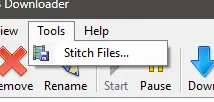
The Stitching Wizard can be launched by selecting the 'Stitch Files...' item in the 'Tools' menu of the main window:
Welcome Page
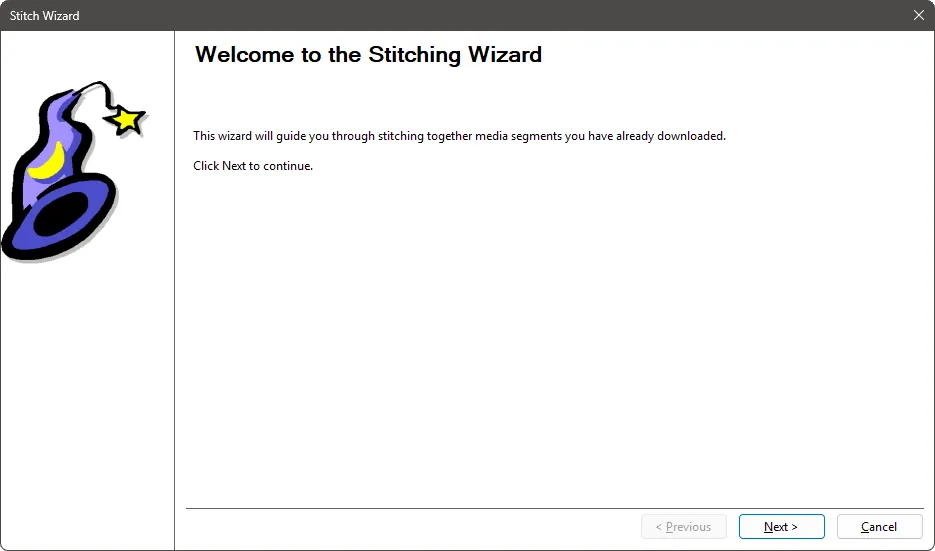
On the Welcome Page, just click Next.
Source Folder Page
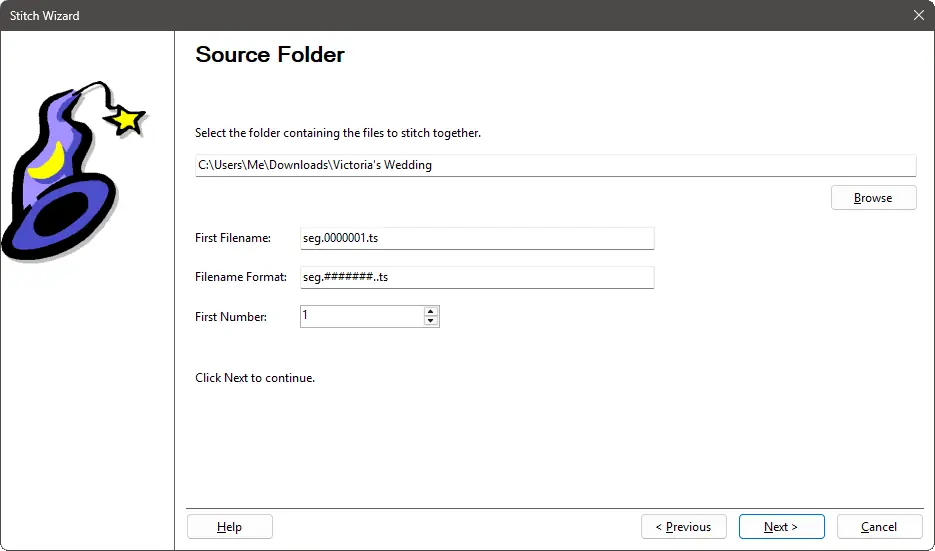
On the Source Folder Page, start by browsing to the folder where the downloaded files are. After selecting the folder, the wizard will then assess the contents in order to determine the filename format. If a suitable filename format is detected then this will be added to the 'Filename Format' text box.
First Filename
This text box will show the first file detected in the selected folder. This is useful for defining the filename format below.
Filename Format
The filename format specifies the sequence of files to stitch together. For example, you may have files named File1.ts, File2.ts, File3.ts, etc. So, the format would be "File#.ts", where the "#" is replaced by an incrementing number. The stitching process will increment the number and look to see if that file exists. If it does, it will append it to the resultant MP4 file. If the file does not exist, that indicates the process is complete.
If the filename format requires padded nnumbering, as shown in the screenshot above, then you can specify multiple # to indicate the length of the number required. So, using the filename example of "seg.0000001.ts", the format would be "seg.#######.ts".
First Number
This value indicates the number to start with when stitching files together. Normally, this is either 0 or 1. So, if your first file is named "File1.ts", this this number needs setting to 1.
Destination File Page
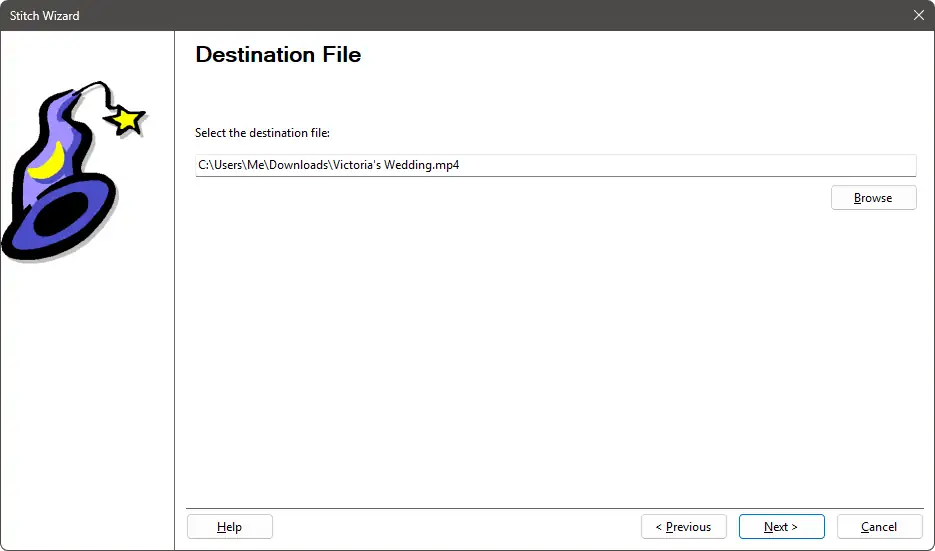
Enter or browse to where you would like to save the resultant MP4 file. Then, click Next.
Ready Page
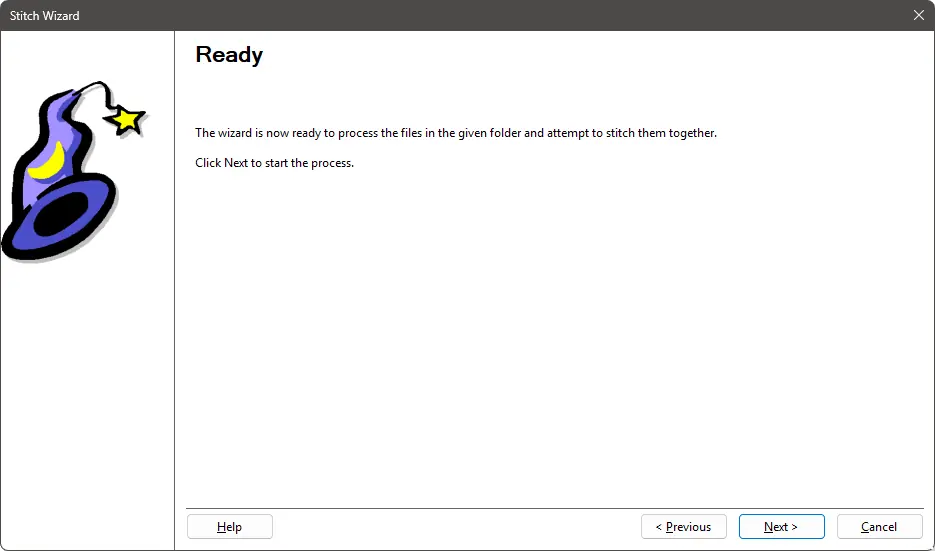
On the Ready page, click Next to start the stitching process.
Progress Page
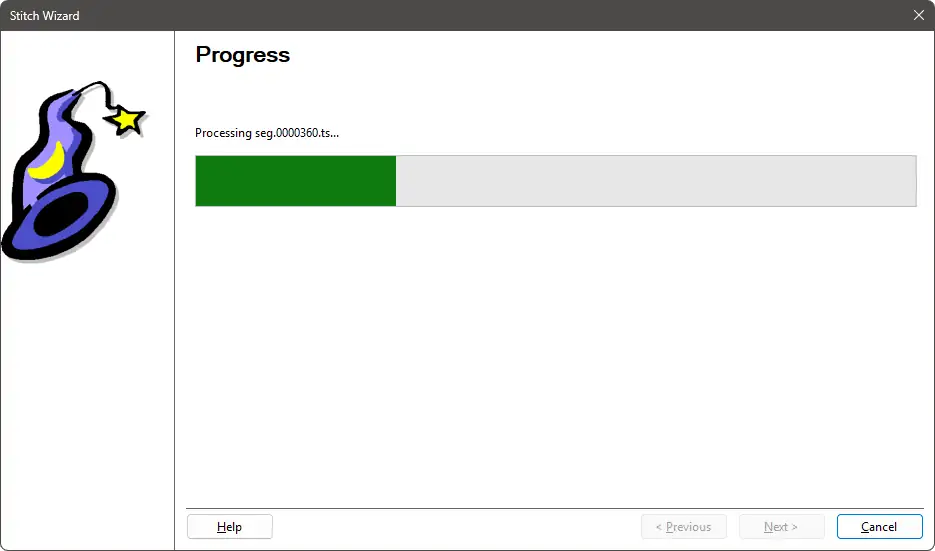
On the Progress page, you will see the progress of the stitching process. This will autmatically progress to the Complete Page.
Complete Page
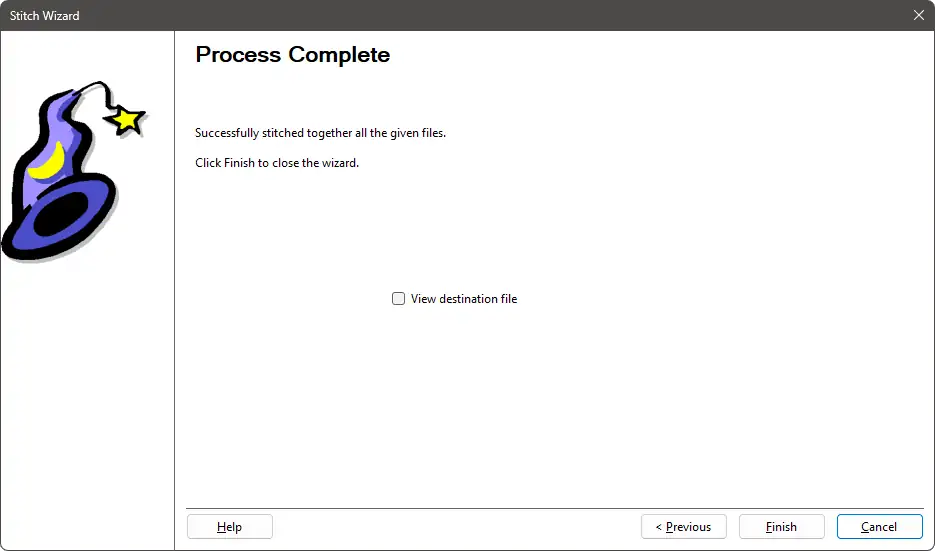
On the Complete page, you will see the end result of the stitching process. If the stitching process was successful then there will be a check box you can tick which will open the resultant video in your system configured video player after clicking Finish.